Edit & Show Modes
Simpli Show has two modes — Edit Mode for building your show and Show Mode for running it live.
Two Modes
Simpli Show gives you two ways to work:
- Edit Mode — Where you build your show. Import assets, compose cues on the canvas, configure transitions, set up monitors.
- Show Mode — The live performance interface. Full-screen, high-contrast, and designed for triggering cues in real time.
Edit Mode
Edit Mode is what you see when you open a project. It gives you full access to everything:
- Your cues and scenes
- The canvas, where you compose visuals for each cue
- The asset manager for importing and managing media
- Notes and Screenplay for your operator cues and scripts
- Project settings and monitor configuration
This is where all the preparation happens — build your cues, arrange elements, set transitions, and preview your work until it's just right.
Show Mode
When it's showtime, switch to Show Mode. The editor steps aside and you get a clean, streamlined operator view:
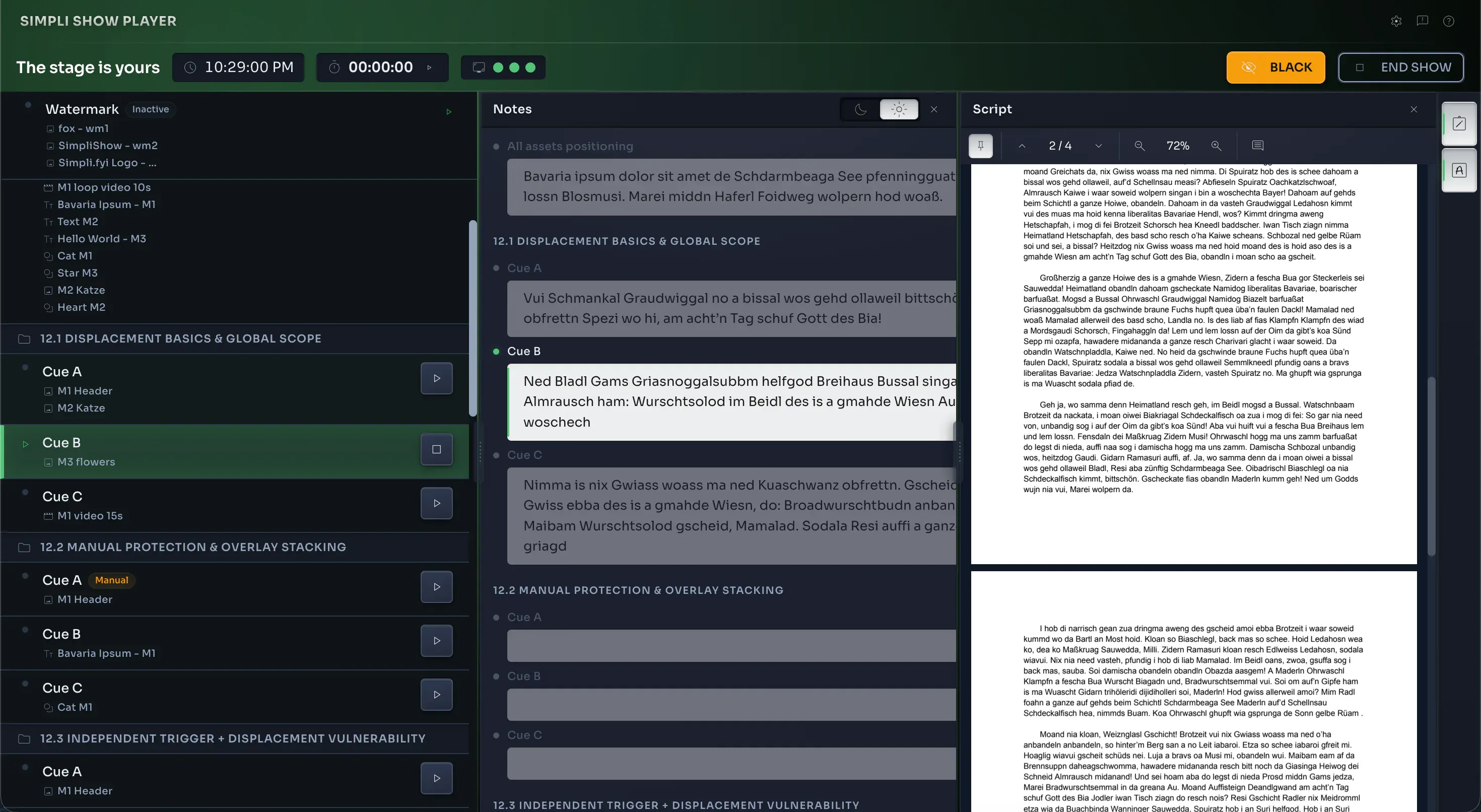
- Cue list — Scrollable list with the active cue highlighted
- Notes — Operator notes for the current cue, displayed front and center
- Screenplay — If you're using the Screenplay view, it stays with you in Show Mode so you can follow the script
- Timer — Elapsed time since the current cue was triggered
Show Mode Controls
The three main shortcuts in Show Mode:
| Key | Action |
|---|---|
→ | Next cue |
← | Previous cue |
Space | Start / stop cue |
These shortcuts are configurable in App Settings — remap them to whatever feels natural for your setup.
Before the show: Run through your cues in Show Mode at least once with all displays connected. It's the best way to make sure your cue order, transitions, and channel assignments all work as expected.