Asset Manager
Your Media Hub
The Asset Manager is where all your project's media lives. Think of it as your toolbox — every image, video, sound file, text block, and shape you might need for the show is collected here. When it's time to build a cue, you simply drag assets from here into your cues.
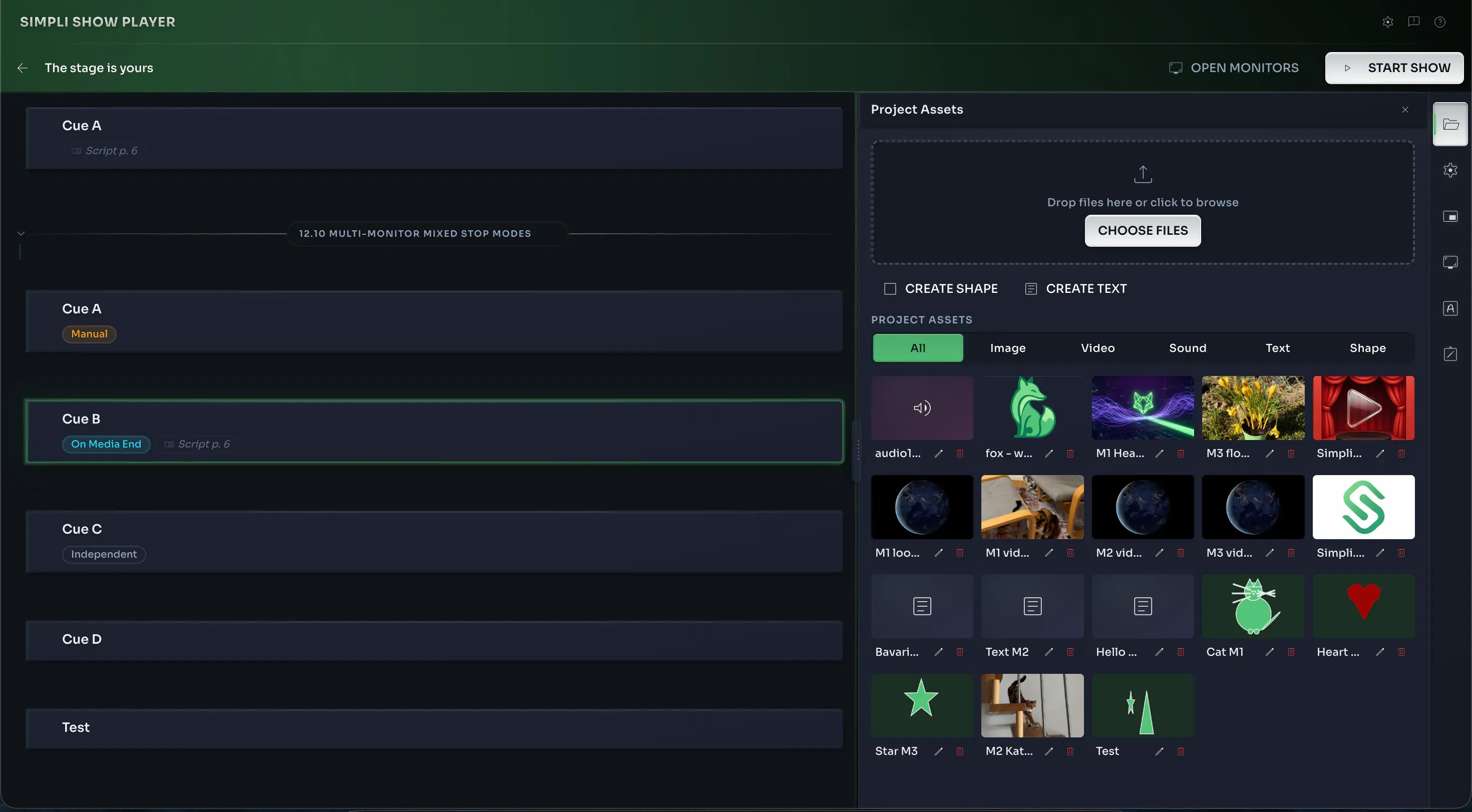
Importing Media
Drag files straight from Finder into the Asset Manager, or use the import button. Simpli Show copies everything into your project folder, so the original files stay untouched.
Asset Types
Simpli Show supports five asset types:
Images
Formats: PNG, JPG, JPEG, SVG, WebP, GIF, SVG
Place images on the canvas, position and scale them, adjust transparency, tweak contrast, saturation and other filters. Use PNG or WebP with transparency for overlays and logos. Have a look around — there's plenty to play with.
Videos
Formats: MP4, WebM, MOV
Drop a video onto your canvas and configure playback — looping, volume, and more.
Sound
Formats: MP3, WAV, OGG, M4A
Sound assets work as cue-bound effects or background audio that keeps playing across cue changes. Control volume, fade-in/out, and looping per asset.
Text
Click Create Text to add a text element. Text supports rich text formatting — fonts, sizes, weights, colors, alignment — so you can style it however you need.
Shapes
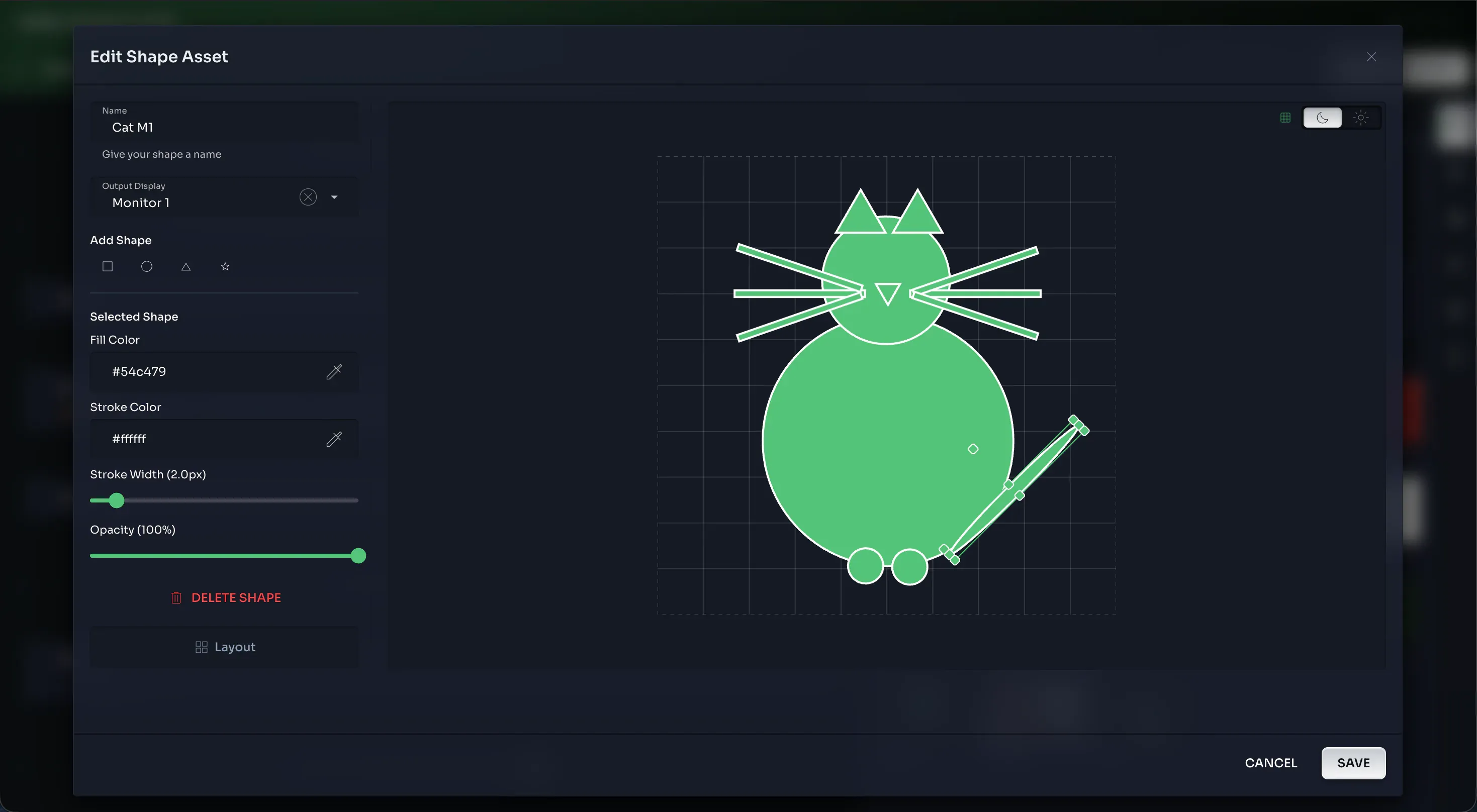
Create geometric elements right in the Asset Manager:
- Rectangle
- Ellipse / Circle
- Triangle
- Star
Customize fill color, stroke, corner radius, opacity — the usual suspects.
Default Settings for Assets
Here's a handy concept: every asset has default settings that you configure right here in the Asset Manager. Position, size, opacity, layout — whatever you set becomes the default whenever that asset appears in a cue.
Say you have a logo that shows up in the same corner across 20 cues. Set its default position once in the Asset Manager, and every cue picks it up automatically. No need to configure the same thing over and over.
And if one particular cue needs that logo somewhere else? No problem — just override the settings for that specific cue. The default stays intact for everything else.
Layout on the Canvas
Visual assets (images, videos, text, shapes) can be arranged directly on the canvas:
- Move — Click and drag
- Resize — Drag corner handles to scale
- Layer order — Right-click on the canvas to bring forward or send backward